March 30, 2026
How to Send Emails from Gmail Using Your Custom Email Address
Use your custom email alias in Gmail to send emails easily. Easy setup, takes 2 minutes.
 Created byPavel Buchta
What this does
This lets you send emails from Gmail using your own email address (like you@yourdomain.com) instead of a Gmail address.
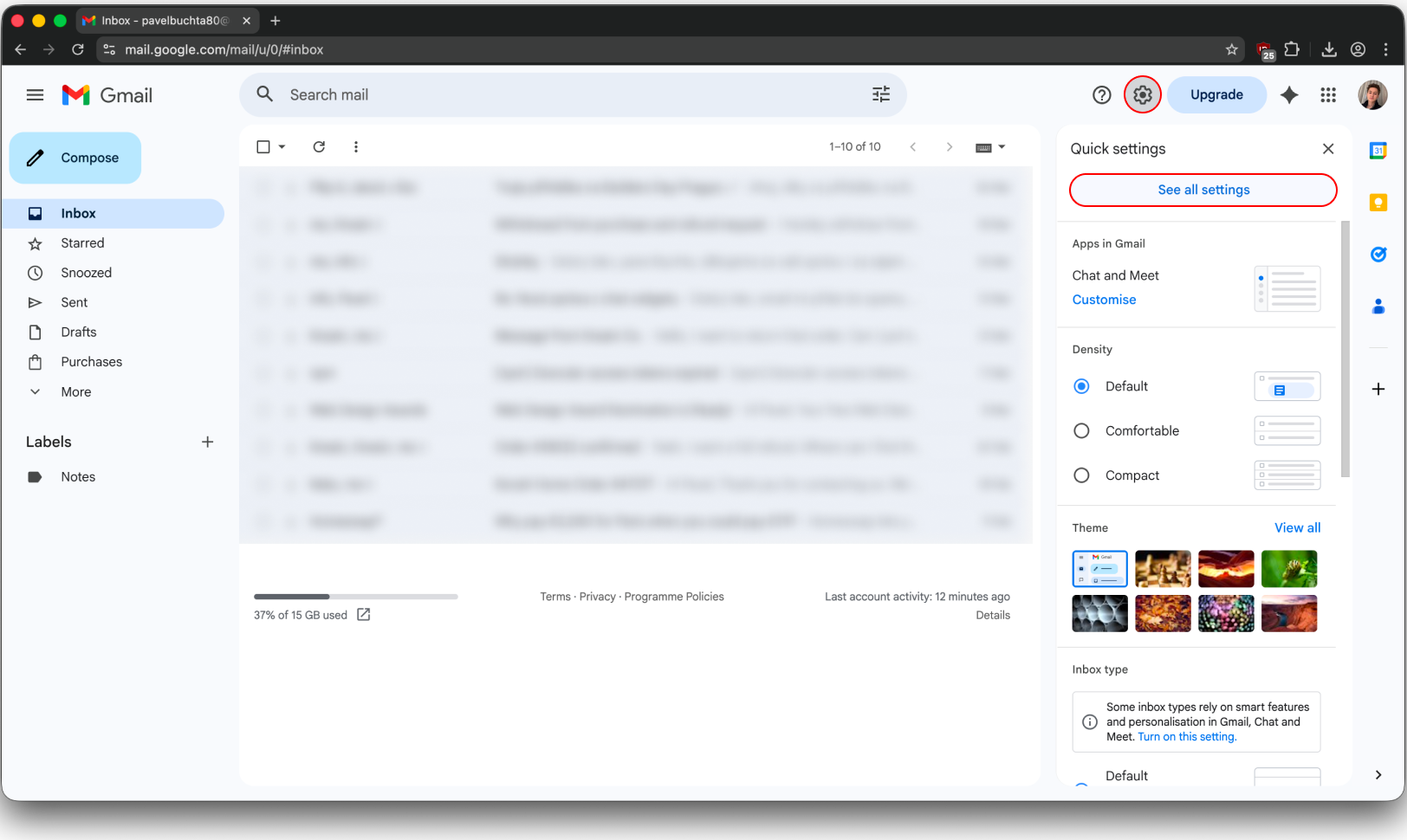
Step 1: Open Gmail Settings
Open Gmail
Click the gear icon (top right)
Click See all settings
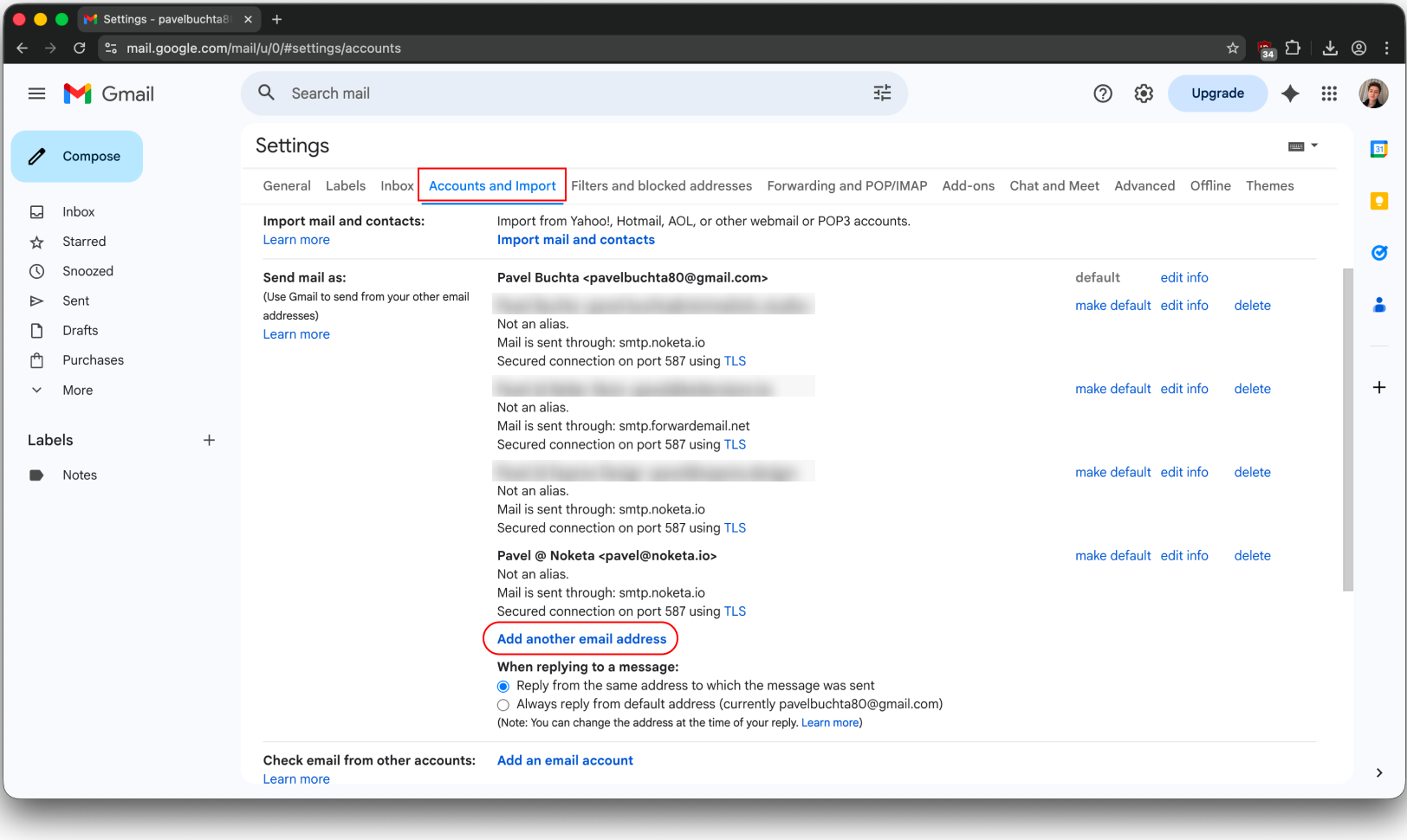
Go to Accounts and Import
Find Send mail as
Click Add another email address
Step 2: Add Your Email
Enter your name
Enter your email address
Leave Treat as an alias checked
Click Next Step
(add email form screenshot)
Step 3: Enter Email Server Details
Fill in the fields like this:
SMTP Server: smtp.noketa.io
Port: 587
Username: your email address
Password: your email password
Select: Secured connection using TLS
Click Add Account
(smtp setup screenshot)
Step 4: Confirm Your Email
Gmail will send you a code.
Open your email inbox
Copy the code
Paste it into Gmail
(verification email screenshot)
Step 5: Send an Email
Click Compose in Gmail
In the “From” field, choose your email address
Send a test email
If everything is correct, your email will be sent from your own address.
Common Issues
Wrong password → re-enter it carefully
Wrong server → make sure it says smtp.noketa.io
Wrong port → must be 587
No code received → check spam folder